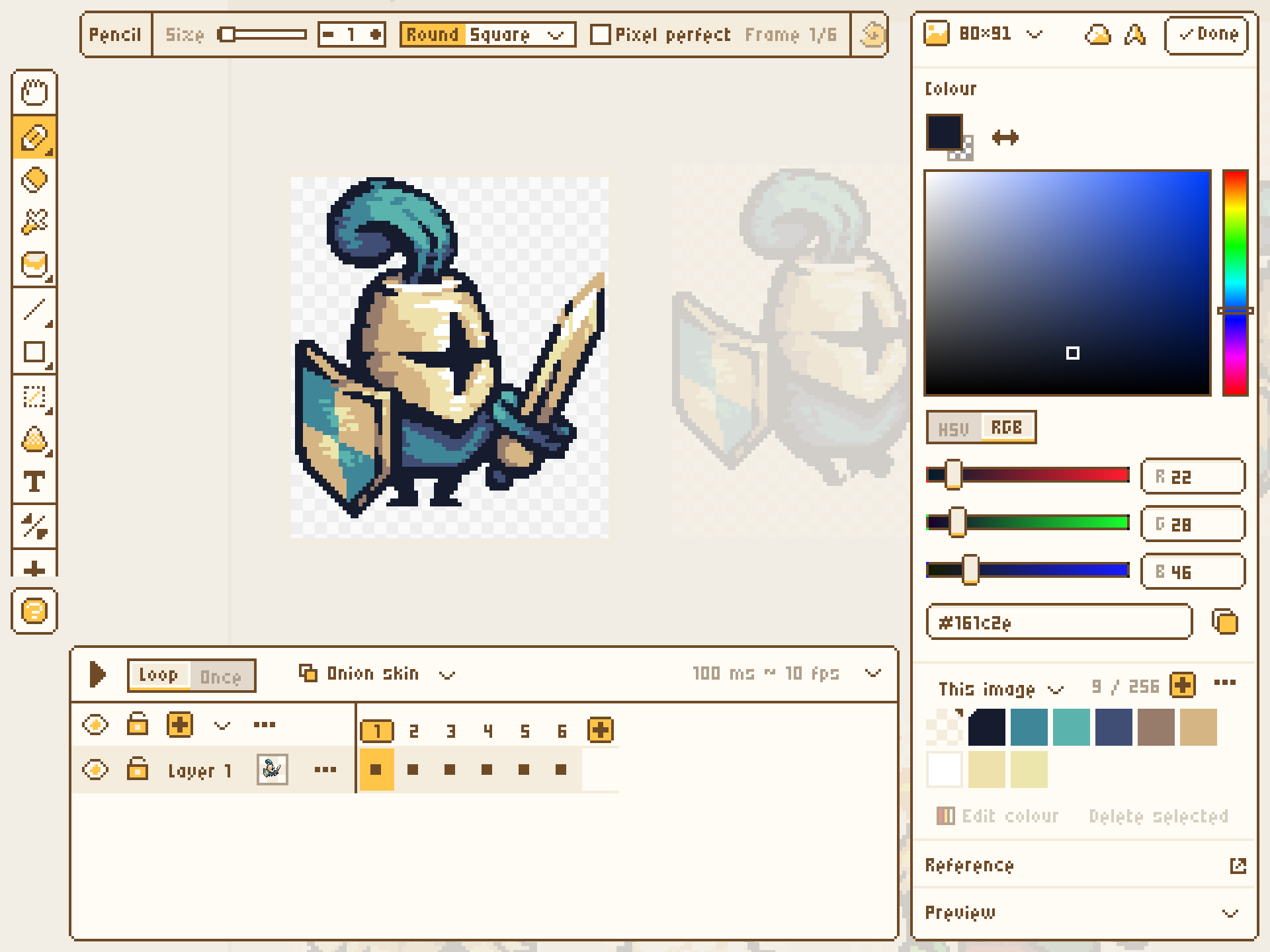
A pixel art app for iPad and phone, right in your browser.
Draw on an iPad, tablet or phone without installing anything. Your stylus draws, two fingers undo, and a long press picks a colour. Your first sprite doesn't need an account.
Your finger covers the exact pixel you're trying to pick.
Press and hold for a loupe above your finger. Drag to the colour and let go.
Your palm brushes the screen and leaves a stroke you never meant.
With a stylus, only the stylus leaves a mark. Drawing by finger, a palm that lands mid-stroke is ignored.
Undo is a tiny button on the far side of the screen.
Tap with two fingers to undo and three to redo, anywhere on the canvas.
Your project is on the desktop and you're on the couch.
Sign in on your tablet or phone and the same project opens in the browser.
In your browser
Open a tab. That's the install.
MakePixel runs in the browser on your iPad, tablet or phone, so there's no App Store download and nothing to update. Start drawing without an account and your work saves in that browser. Sign in and it moves into your account, where the same projects open on your other devices. If the connection drops while a project is open, keep drawing. Your changes send when you're back online.
How to
1Open MakePixel in your device's browser and choose Start drawing.
2Draw straight away. Your work saves in this browser.
3Sign in when you're ready, and your drawing moves into your account.
4Open the same project on any device you're signed in on.
Tip Until you sign in, your work lives only in that one browser, so clearing its data removes it.
On a touchscreen, your hands replace the keyboard. Pinch to zoom, drag two fingers to pan, and tap two fingers to undo or three to redo, with a quick label to show it landed. Press and hold with a drawing tool and a loupe opens above your finger, magnifying the pixels you're about to pick. Start a pinch right after touching down and the mark you began disappears, with nothing added to your undo history.
How to
1Pinch to zoom and drag two fingers to pan.
2Tap with two fingers to undo, or three to redo.
3Press and hold with a drawing tool to open the loupe, drag to a colour and let go.
Once your stylus touches the canvas, it's the only thing that draws. Your fingers switch to navigation, so one finger pans and two still pinch and tap to undo. A palm or stray finger can't leave a mark. If your stylus reports hover, the brush shows where it will land before you touch down. Pressure and tilt aren't used, because a pixel is either there or it isn't.
How to
1Draw with your stylus. There's no setting to turn on.
2Drag one finger to pan, and pinch with two to zoom.
3Tap with two fingers to undo without putting the stylus down.
On a tablet-sized screen you get the same layout as on a computer, with the tool rail, options bar, right panel and timeline. Every drawing tool is there, with 64 layers an image and up to 1,024 frames. Buttons grow to fit a finger, and controls that normally wait for a hover stay on screen. Split the screen and the editor switches to its phone layout as the window narrows.
How to
1Pick a tool from the rail on the left, or open its group for more.
2Adjust it in the options bar along the top.
3Use the right panel for Colour and Palette, and the timeline below for Layers and frames.
A phone gets its own layout instead of a shrunken desktop. Eight slots along the bottom hold your brushes, eraser, fills, shapes, selection tools, effects, colour and layers. One options row shows the setting you'll change most, and the rest are a tap away. Colours and layers slide up from the bottom, and a small frame bar steps through and plays your animation. Turn the phone sideways and the tools move to the side, so the canvas takes the height.
How to
1Tap a tool to pick it, and tap it again for its settings.
2Tap the colour slot for colours, or the layers slot for layers and frames.
3Tap the canvas to close a panel. That tap never draws.
4Choose Share in the top bar to post or download your art.
5On the project canvas, press and hold an image for its menu, including Export.
Not in the App Store. MakePixel runs in the browser on your iPad, with the full editor and touch gestures. A layout made specifically for iPad is on our public roadmap.
Does it work with Apple Pencil?
Yes. The Pencil draws and your fingers pan and zoom. Pressure and tilt aren't used, and there are no Pencil double-tap or squeeze actions.
Is this pixel art app free?
Yes, to start. You can draw without an account, and the drawing tools, layers, animation and exports are free. Pro adds version history, new custom brushes, auto layers and more storage.
Can I use it offline?
Partly. If a project is already open, you can keep drawing when the connection drops, and your changes send when you're back online. You can't open another project offline or install it as an app.
Can I do everything on a phone?
Nearly. Drawing, shapes, selections, effects, layers, frames and sharing are all there. The Text tool isn't on the phone toolbar, so use a tablet or computer for lettering.
Can I use a keyboard with my iPad?
Yes. Attach one and the editor's keyboard shortcuts work as they do on a computer, and a trackpad acts as a mouse.
Your game's art deserves one home.
Open a canvas and draw the first sprite. The rest of the game can move in when it's ready.