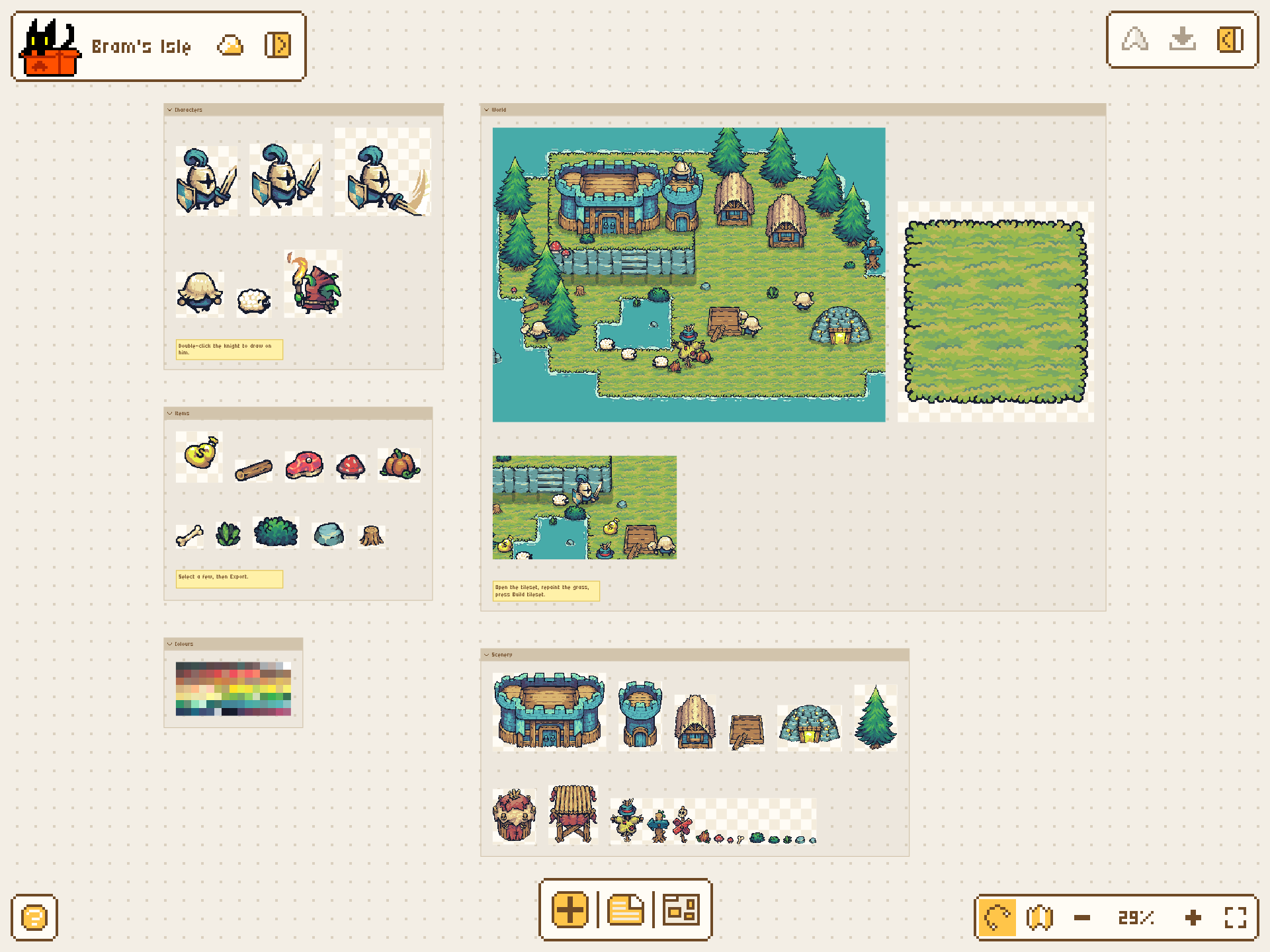
Sprites, animations, tilesets, maps and notes sit side by side on a canvas with no edges. Fix a sprite once and every project linked to it can follow. It all saves as you work, so a crashed tab doesn't take your strokes with it.
Your art is spread across folders, and which hero file is the real one is anyone's guess.
Every image, animation, tileset, map and note sits on one board you can pan, zoom and search.
You fix the crate in one level and now have five more copies to fix by hand.
Save it as an asset and every project using it can update from the one original.
Two copies got edited, and one quietly overwrote the other.
When both sides changed, you choose. Keep yours, take the asset's, or detach it as a copy.
The tab crashed and took the last hour of drawing with it.
Edits wait on your device until they're confirmed saved, and anything unsent goes up when you reopen the project.
Canvas
Your whole game on one board.
Stop hunting through folders. A project is one infinite canvas where sprites, animations, tiles, tilesets, maps, scenes, reference images and notes sit next to each other. Animations play right on the board, so your idle and walk can loop side by side while you judge them. Zoom out to see the whole game, or search to jump straight to one piece.
How to
1Create an image, animation, tile, tileset or map.N
2Drop in PNGs, GIFs, .aseprite files or maps, or paste them.
3Hold Space and drag to pan. Pinch, or hold Ctrl or ⌘ and scroll, to zoom.
Wrap related art in a section and it moves as one block. Drag a sprite in and it joins, drag it out and it leaves, with no menu involved. Collapse whatever you're not working on. Notes keep level ideas and animation reminders right beside the art they're about, and search reads them too.
How to
1Select your art, right-click and choose Add to new section.Option Command G
2Or arm the tool and drag a section out on empty canvas.Shift S
3Add a New note wherever you need one.T
4Select several images and choose Row, Column or Grid to tidy them up.
Tip Deleting a section removes only the frame. Everything inside stays where it was.
Drag anything. Move the section and what's inside comes along.
Assets
Your best art, in one library.
The crate you drew for level one shouldn't need redrawing for level nine. Save any image, animation, tile or tileset as an asset and it joins a library that follows you into every project. Click one to place it in the middle of your view, or drag it exactly where it goes. Each card shows how many projects use it.
How to
1Right-click an image on the canvas and choose Save as asset.
2Open the Assets tab in the left sidebar of any project.
3Click an asset to place it, or drag it onto the canvas.
4To draw a new one on its own, choose New asset under Assets on your projects page.
A placed asset stays linked to its original. Edit it in one project and the original updates when you leave the editor. Other projects catch up when you open them or come back to their tab. If both sides changed, nothing gets overwritten. Both versions are kept until you choose Keep mine, Use the asset's or Detach as a copy.
How to
1Edit a placed asset and leave the editor. The original updates.
2Open another project that uses it, or switch back to its tab, and it catches up.
3If both changed, select the image and choose under Asset changed in the details panel.
4To let one copy go its own way, right-click it and choose Detach from asset.
Tip Moving an asset to the trash breaks nothing. Projects using it keep their own copy and stop syncing.
This image and the asset were both edited since they last matched.
The asset takes this version.
This level takes the asset's.
Stays as it is, stops syncing.
Saving and history
Close the tab. Your work is still there.
There's no save button to forget. Each edit is stored on your device first and stays there until your account confirms it. If a tab crashes, reopening the project sends what was left, without drawing a stroke twice. When the connection drops, the project you have open keeps working. With Pro, Version history lets you go back, name a checkpoint or start a copy from an old version.
How to
1Hover the save status at the top left to see All changes saved, or how many edits are waiting.
2Deleted something? Open Deleted in the File panel and choose Restore.
3On Pro, open the image menu, choose Version history, then Save version to name a checkpoint.
4Deleted a whole project? Restore it from Trash on your projects page.
Tip Name the versions that matter. Named versions are never cleared automatically, while unnamed ones can be when a project reaches its storage limit.
No. There's no real-time multiplayer, and only a project's owner can open it. You can send a read-only share link, or a .makepixel file that the other person imports as their own separate copy.
Does it work offline?
Partly. A project you already have open keeps working when the connection drops, and your edits sync when it comes back. You can't open another project or place new images while offline.
What happens if my browser crashes?
Your edits are stored on your device before they're sent. When you reopen the project, anything unsent goes up automatically, and no stroke is applied twice.
Is version history free?
Version history is part of Pro. Free still has autosave, your most recently deleted items and a Trash for whole projects.
How do I back up a project?
Open the menu next to the project name and choose Download project file. You get a .makepixel file with your images, maps and notes. It doesn't include version history or timelapses.
How much can one project hold?
Up to 5,000 items and 50 MB per project. Your account has 50 MB of storage on Free and 10 GB on Pro.
Your game's art deserves one home.
Open a canvas and draw the first sprite. The rest of the game can move in when it's ready.